前言
之前写过一篇在博客里添加 Bangumi 追番页面的文章,那篇文章主要讲的是一个独立功能:如何通过 layouts/page/bilibili.html 和 layouts/shortcodes/bangumi.html 做出一面 Bangumi 收藏墙。
这一篇则整理博客里更零散、更基础的美化工作。笔者现在用的是 Hugo v0.131.0 和 Stack 主题 v3.26.0,为了弄清楚每个地方到底改了什么,这次把原版 Hugo 和 Stack 主题源码也放到了本地,再对比 Blog/elainafan 里的覆盖文件来看。
Hugo 的主题覆盖机制其实很适合个人博客装修:主题文件放在 themes/hugo-theme-stack,而站点根目录下的 layouts、assets、static 会优先于主题生效。也就是说,如果在博客根目录里放一个 layouts/partials/footer/footer.html,它就会覆盖 Stack 主题里同名的 footer partial。
因此,本文的核心思路就是:不直接修改主题源码,而是在博客目录里按需覆盖。这样以后升级主题时,只需要重点检查这些覆盖文件,维护范围会更清楚一些。
全局卡片圆角
先看 assets/scss/custom.scss 里的全局变量。Stack 主题大量使用 CSS 变量控制卡片圆角、间距、字号和颜色,因此很多效果不需要到处改类名,只要重写变量即可。这段加在 assets/scss/custom.scss 中:
 1
 2
 3
 4
 5
 6
 7
 8
 9
10
11
12
13
14
| :root {
--main-top-padding: 30px;
--card-border-radius: 25px;
--tag-border-radius: 8px;
--section-separation: 40px;
--article-font-size: 1.8rem;
--code-background-color: #f8f8f8;
--code-text-color: #e96900;
&[data-scheme="dark"] {
--code-background-color: #ff6d1b17;
--code-text-color: #e96900;
}
}
|
这里最明显的是 --card-border-radius 和 --section-separation。前者决定卡片圆角,后者决定页面块之间的距离。Stack 主题本身是卡片式布局,所以这两个变量一改,全站气质就会跟着变。
同一组变量里还调整了行内代码的背景色和前景色。写 CS、算法和建站笔记时,行内代码会非常多,如果默认样式太淡,阅读起来会有点糊;如果太亮,又会抢正文。所以这里给亮色和暗色分别配置了更稳定的行内代码颜色。
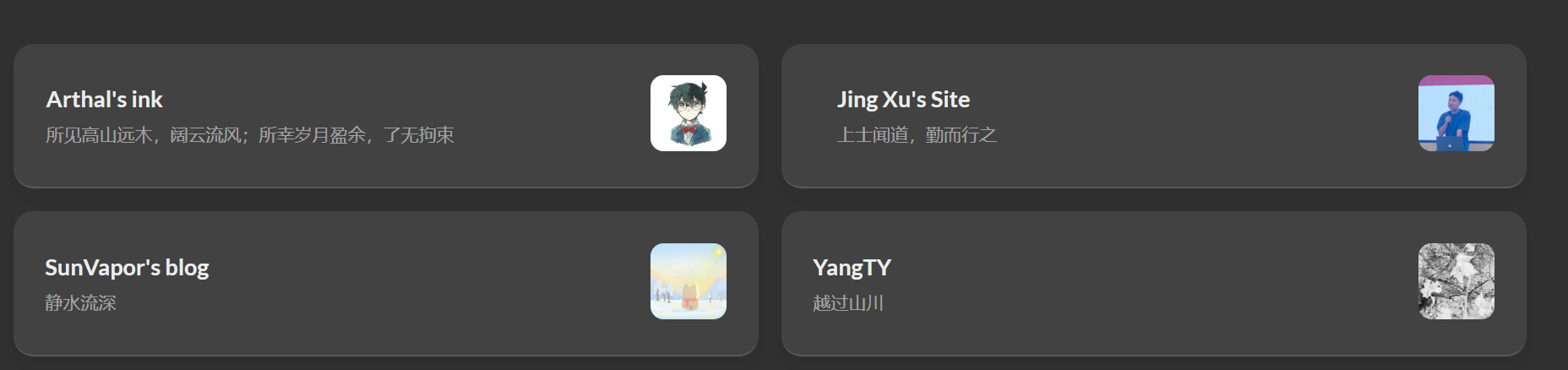
友链归档双栏
首页、友链和归档页的卡片是 Stack 主题最显眼的部分。笔者的主要改动仍然集中在 assets/scss/custom.scss。
在桌面端把紧凑文章列表改成两列,这段加在 assets/scss/custom.scss 中:
 1
 2
 3
 4
 5
 6
 7
 8
 9
10
11
12
13
14
15
16
17
18
| @media (min-width: 1024px) {
.article-list--compact {
display: grid;
grid-template-columns: 1fr 1fr;
background: none;
box-shadow: none;
gap: 1rem;
article {
background: var(--card-background);
border: none;
box-shadow: var(--shadow-l2);
margin-bottom: 8px;
margin-right: 8px;
border-radius: 16px;
}
}
}
|
原来的紧凑列表是一列到底,比较稳,但是内容多了以后会显得很长。改成两列后,归档页的信息密度会高一些。友链和链接页面使用的也是这一类 compact 列表结构,因此这个样式同样会让友链卡片变成多列显示。需要注意的是,.article-list--compact 原本自己带背景和阴影,如果直接改成 grid,会出现一个大背景包着小卡片的感觉,所以这里把外层背景去掉,再给每个 article 单独加回卡片样式。
封面与分类页比例
然后是封面图高度。相关代码同样加在 assets/scss/custom.scss 中:
 1
 2
 3
 4
 5
 6
 7
 8
 9
10
11
12
13
| .article-list article .article-image img {
width: 100%;
height: 150px;
object-fit: cover;
@include respond(md) {
height: 200px;
}
@include respond(xl) {
height: 305px;
}
}
|
这里用 object-fit: cover 保证封面图不会被压扁。高度则根据屏幕尺寸逐步增加,使宽屏下的文章卡片更舒展。
分类页还有一个容易被忽略的地方:Stack 主题的分类页顶部会用 .section-card 显示分类封面、文章数量、分类名和描述。默认样式在桌面端还算正常,但到了手机端,如果封面图和文字仍然挤在同一行,就很容易出现文字被压成竖排、图片比例也不舒服的问题。
因此笔者把分类页头图在手机端改成上下结构,图片固定为 16:9;到了桌面端再恢复成左右结构,让图片占据更大的横向空间。这段也加在 assets/scss/custom.scss 中:
 1
 2
 3
 4
 5
 6
 7
 8
 9
10
11
12
13
14
15
16
17
18
19
20
21
22
23
24
25
26
27
28
29
30
31
32
33
34
35
36
37
38
39
40
41
42
43
44
45
46
47
48
49
50
51
52
53
54
55
56
57
58
| .section-card {
align-items: stretch;
flex-direction: column;
gap: 0;
overflow: hidden;
padding: 0;
.section-image {
width: 100%;
aspect-ratio: 16 / 9;
overflow: hidden;
img {
display: block;
width: 100% !important;
height: 100% !important;
object-fit: cover !important;
}
}
.section-details {
min-width: 0;
border-left: 0;
border-top: 1px solid rgba(255, 255, 255, .18);
padding: 18px 20px 20px;
}
.section-count,
.section-term,
.section-description {
word-break: break-word;
}
@include respond(md) {
align-items: center;
flex-direction: row;
gap: 20px;
padding: var(--small-card-padding);
.section-image {
flex: 0 0 58%;
max-width: 58%;
}
.section-details {
border-top: 0;
border-left: 5px solid rgba(255, 255, 255, .85);
padding: 0 0 0 15px;
}
}
@include respond(xl) {
.section-image {
flex-basis: 62%;
max-width: 62%;
}
}
}
|
同一类问题还会出现在归档页、分类页的子分类横卡上。原版 Stack 的 tile 卡片更偏固定尺寸,手机端容易溢出或需要横向滚动。这里把 .subsection-list 里的 tile 改成响应式网格:手机端一列,平板以上两列,宽屏三列。相关代码同样加在 assets/scss/custom.scss 中:
 1
 2
 3
 4
 5
 6
 7
 8
 9
10
11
12
13
14
15
16
17
18
19
20
21
22
23
24
25
26
27
28
29
30
31
32
33
| .subsection-list {
overflow-x: visible;
.article-list--tile {
display: grid;
grid-template-columns: 1fr;
gap: 18px;
overflow: visible;
article {
width: 100%;
height: auto;
aspect-ratio: 16 / 9;
margin-right: 0;
}
}
@include respond(md) {
.article-list--tile {
grid-template-columns: repeat(2, minmax(0, 1fr));
article {
aspect-ratio: 5 / 3;
}
}
}
@include respond(xl) {
.article-list--tile {
grid-template-columns: repeat(3, minmax(0, 1fr));
}
}
}
|
这样处理以后,首页文章封面、分类页头图和子分类横卡各自有自己的比例:普通文章列表按高度控制,分类头图按 16:9 控制,子分类横卡则在手机端优先保证完整横图,桌面端再提高信息密度。
卡片悬浮动画
接下来是卡片悬浮动画,这段加在 assets/scss/custom.scss 中:
1
2
3
4
5
6
7
| .article-list article {
transition: transform 0.6s ease;
}
.article-list article:hover {
transform: scale(1.05);
}
|
归档页的 tile 卡片和 compact 卡片也分别加了缩放和右移动画。这个改动本质上只是给卡片一点反馈,不涉及 Hugo 模板。动画幅度不宜过大,不然鼠标扫过页面时会显得很晃。
首页三栏布局
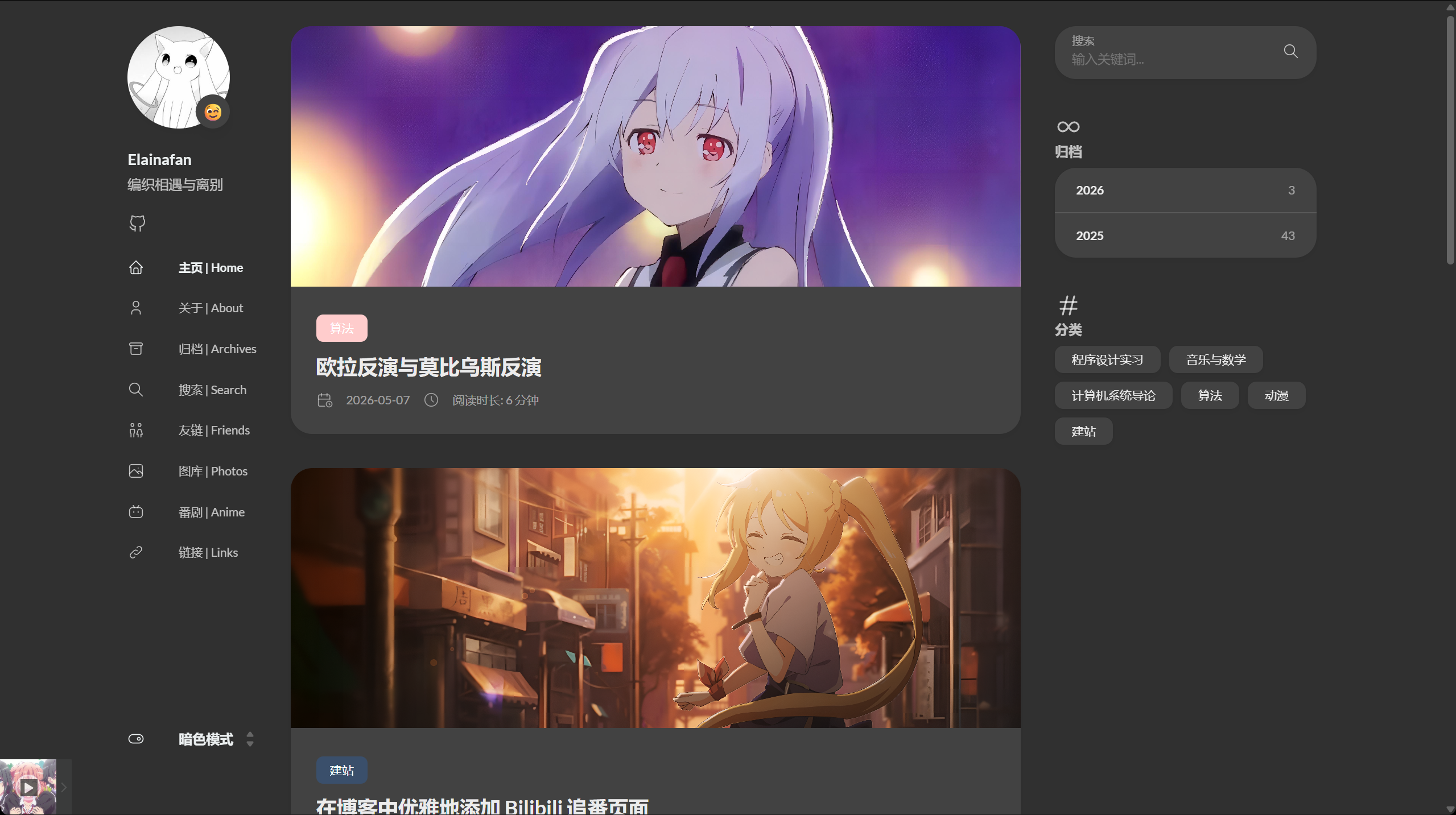
三栏布局的宽度调整也在 custom.scss 中。Stack 的主体容器是 .container.main-container,它里面有左侧栏、右侧栏和正文区域。
相关代码加在 assets/scss/custom.scss 中:
 1
 2
 3
 4
 5
 6
 7
 8
 9
10
11
12
13
14
15
16
17
18
19
20
21
| .container {
&.extended {
@include respond(md) {
max-width: 1024px;
--left-sidebar-max-width: 25%;
--right-sidebar-max-width: 22% !important;
}
@include respond(lg) {
max-width: 1280px;
--left-sidebar-max-width: 20%;
--right-sidebar-max-width: 30%;
}
@include respond(xl) {
max-width: 1453px;
--left-sidebar-max-width: 15%;
--right-sidebar-max-width: 25%;
}
}
}
|
这部分主要解决的是宽屏下正文和侧边栏的比例。默认 Stack 的布局已经够用,但如果文章里有比较多代码块、公式或表格,正文区域太窄就会很痛苦。因此这里稍微放宽了整体容器,并重新分配左右侧栏宽度。
菜单卡片化
菜单栏也做了圆角和阴影处理,这段加在 assets/scss/custom.scss 中:
1
2
3
4
5
6
| .menu {
background-color: var(--card-background);
box-shadow: var(--shadow-l2);
border-radius: 10px;
padding: 30px 30px;
}
|
移动端展开菜单时,这个样式会让菜单更像一个独立卡片,而不是一块硬邦邦的列表。到了桌面端,主题会恢复透明背景和正常布局。
站内随机漫游
左侧菜单里还加了一个 随机 | Random 入口,用来在站内文章之间随机跳转。这个功能本身不复杂,但有一个需要额外注意的点:站内有些文章是加密的,随机入口不能为了方便跳转就把文章内容提前暴露出来。
因此这里的做法是,在 layouts/partials/sidebar/left.html 里只生成一个很轻量的文章池,里面只保留文章标题和链接:
1
2
3
4
5
6
7
| {{- $randomPosts := slice -}}
{{- $mainSections := .Site.Params.mainSections | default (slice "post") -}}
{{- range .Site.RegularPages -}}
{{- if and (in $mainSections .Section) (ne .Params.hidden true) (ne (.Params.encrypt | default false) true) -}}
{{- $randomPosts = $randomPosts | append (dict "title" .Title "url" .RelPermalink) -}}
{{- end -}}
{{- end -}}
|
这里用 .Site.Params.mainSections 限制随机范围,默认只抽 post 下面的正式文章;同时过滤掉 hidden: true 和 encrypt: true 的页面,避免把系列文章里的隐藏子页或加密文章放进随机池。随机漫游本身不渲染正文,但既然左侧菜单会把标题和链接写进页面,最稳妥的做法还是直接不让加密文章参与随机抽取。
菜单项本身仍然放在 Stack 的主菜单结构里,这样可以直接继承左侧菜单的图标、间距和暗色模式样式:
1
2
3
4
5
6
| <li>
<a href='{{ "/archives/" | relLangURL }}' data-random-post>
{{ partial "helper/icon" "infinity" }}
<span>随机 | Random</span>
</a>
</li>
|
文章池则放在 application/json 类型的脚本标签里。这里需要用 safeJS,否则 Hugo 在脚本语境里可能会把 JSON 数组再包成一个字符串,前端解析时就会多一层。
1
| <script type="application/json" id="random-posts-data">{{ . | jsonify | safeJS }}</script>
|
最后在 assets/ts/main.ts 里绑定点击事件,从文章池里随机取一篇并跳转即可。为了避免在当前文章原地打转,脚本会优先排除当前页面;如果站内只有一篇文章,再退回原始文章池。这样功能比较轻,不需要后端,也不会影响原来的加密逻辑。
自定义背景图
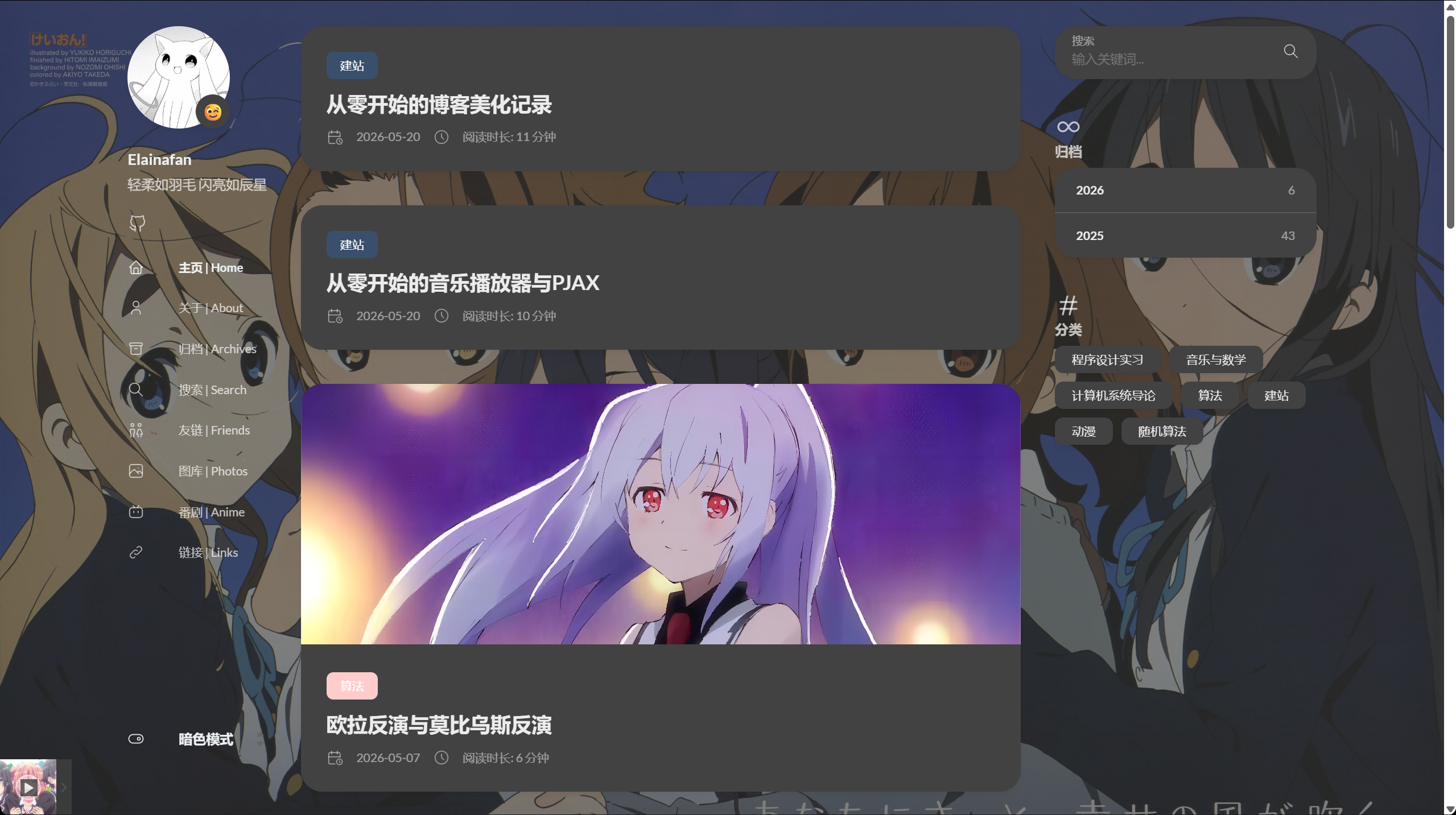
背景图参考的是 Hugo Stack 主题装修笔记
里的做法:把图片作为 Hugo 的资源读取出来,再给 body 设置背景。笔者这里稍微改了一下,没有在模板里写死具体文件名,而是读取 assets/background/ 下的第一张图片。这样之后想换背景时,只需要替换这个目录里的图片,不需要再改模板。
这段加在 layouts/partials/footer/custom.html 中:
 1
 2
 3
 4
 5
 6
 7
 8
 9
10
11
12
13
14
15
16
17
18
19
20
21
22
| {{ $backgroundImages := resources.Match "background/*.{jpg,jpeg,png,webp,avif}" }}
{{ with $backgroundImages }}
{{ with index . 0 }}
<style>
body {
background:
linear-gradient(rgba(245, 245, 250, 0.72), rgba(245, 245, 250, 0.72)),
url({{ .Permalink }}) no-repeat center top;
background-size: cover;
background-attachment: fixed;
}
[data-scheme="dark"] body {
background:
linear-gradient(rgba(48, 48, 48, 0.62), rgba(48, 48, 48, 0.62)),
url({{ .Permalink }}) no-repeat center top;
background-size: cover;
background-attachment: fixed;
}
</style>
{{ end }}
{{ end }}
|
这里的 background-size: cover 用来让背景铺满屏幕,background-attachment: fixed 则让背景在页面滚动时保持固定。前面的 linear-gradient 是一层遮罩:亮色模式下用偏白的遮罩压低背景存在感,暗色模式下用偏黑的遮罩降低亮部干扰。因为博客主体区域本身还有卡片背景,所以背景图主要出现在页面两侧和卡片之间的空隙里,不会直接压到正文阅读。
头像旋转
头像旋转是一个很简单的小动画,这段加在 assets/scss/custom.scss 中:
1
2
3
4
5
6
7
| .sidebar header .site-avatar .site-logo {
transition: transform 1.65s ease-in-out;
}
.sidebar header .site-avatar .site-logo:hover {
transform: rotate(360deg);
}
|
它没有什么技术难度,但非常适合个人博客。鼠标挪上去时头像转一圈,属于那种“平时没用,但是看到了会有点开心”的小装饰。
正文图片圆角
文章图片则统一加了圆角,这段加在 assets/scss/custom.scss 中:
1
2
3
4
5
6
7
| .article-page .main-article .article-content {
img {
max-width: 96% !important;
height: auto !important;
border-radius: 8px;
}
}
|
这里的 max-width: 96% 是为了让图片不要完全贴满正文宽度,尤其是带阴影或圆角时,留一点余地会舒服很多。
静态图片放大查看
这里还遇到过一个比较隐蔽的问题:普通文章里的图片一般和 Markdown 文件放在同一个 Page Bundle 下,比如 content/post/某篇文章/1.png。这种图片会被 Hugo 的 Markdown image render hook 识别为页面资源,于是自动拿到宽高,并加上 gallery-image,最后交给 Stack 主题的 PhotoSwipe 处理。
但有些拆成多个子页面的长期更新文章,比如 content/post/二次元修炼日记!/cf-1072.md,图片不一定适合继续放在原来的文章目录里。笔者把共用图片放到了 static/images/anime-diary/,然后在文章中用  引用。这样图片能显示,但一开始不会像普通文章图片那样进入图库,也就不能居中和点击放大。
原因在 layouts/_default/_markup/render-image.html。原来的逻辑只有在 .Page.Resources.GetMatch 找到图片资源时,才会设置 gallery-image。所以需要把以 / 开头、不是外链、不是 SVG 的本地静态图片也纳入图库:
1
2
3
4
| {{- $notSVG := ne (lower (path.Ext .Destination)) ".svg" -}}
{{- $isExternal := or (strings.HasPrefix .Destination "http://") (strings.HasPrefix .Destination "https://") -}}
{{- $isProtocolRelative := strings.HasPrefix .Destination "//" -}}
{{- $isStaticImage := and (strings.HasPrefix .Destination "/") (not $isExternal) (not $isProtocolRelative) $notSVG -}}
|
接着在同一个文件里保留原来的 Page Bundle 处理逻辑,并给静态本地图补上 gallery-image:
 1
 2
 3
 4
 5
 6
 7
 8
 9
10
11
| {{- if $image -}}
{{- $Permalink = $image.RelPermalink -}}
{{- if $notSVG -}}
{{- $Width = $image.Width -}}
{{- $Height = $image.Height -}}
{{- $galleryImage = true -}}
{{- end -}}
{{- else if $isStaticImage -}}
{{- $galleryImage = true -}}
{{- end -}}
|
不过这样还不够。Page Bundle 图片有 Hugo 提前写好的 width 和 height,但 static 里的图片没有。PhotoSwipe 打开图片时需要宽高,如果直接读空值,就容易出现缩放不正常的问题。因此还要改 assets/ts/gallery.ts,给图片尺寸加一个兜底:
 1
 2
 3
 4
 5
 6
 7
 8
 9
10
| private static imageDimensions(img: HTMLImageElement) {
const width = parseInt(img.getAttribute('width') || ''),
height = parseInt(img.getAttribute('height') || ''),
rect = img.getBoundingClientRect();
return {
w: width || img.naturalWidth || Math.round(rect.width) || 1200,
h: height || img.naturalHeight || Math.round(rect.height) || 675
};
}
|
然后在点击图片打开 PhotoSwipe 前,再用当前图片重新刷新一次尺寸:
1
2
3
4
5
6
7
8
9
| const img = item.el.querySelector('img');
if (img) {
const dimensions = StackGallery.imageDimensions(img);
const link = item.el.querySelector('a');
item.w = dimensions.w;
item.h = dimensions.h;
item.src = link?.href || img.src;
item.msrc = img.getAttribute('data-thumb') || img.src;
}
|
这样处理后,/images/anime-diary/4.png 这种从 static 目录来的图片,也能和普通文章图片一样被包进 figure.gallery-image,在正文中居中显示,并且点击后进入 PhotoSwipe 放大查看。
后来接入 PJAX 之后,这里又遇到过一次类似但原因不同的问题:直接打开文章时图片可以放大,但从首页或归档页无刷新切进文章后,正文图片只会像普通链接一样跳转,PhotoSwipe 预览没有生效。
这时 render-image.html 其实已经正常工作了,生成出来的图片也有 gallery-image、width 和 height。真正的问题在于 PhotoSwipe 的根节点和外部脚本原本放在文章页面的 main 区域里,例如 layouts/_default/single.html 末尾:
1
| {{ partialCached "article/components/photoswipe" . }}
|
但 PJAX 只替换页面中的 .main-container、.js-Pjax 和 Timer。新页面里的普通 HTML 会被换进来,脚本标签却不会像整页刷新那样重新执行。于是图片本身进入了图库结构,但 PhotoSwipe 依赖和根节点在 PJAX 切页场景下不够稳定。
解决办法是把 PhotoSwipe 挪到全站 footer,让它和播放器、PJAX 初始化一样,成为页面常驻部分。也就是在 layouts/partials/footer/include.html 中加入:
1
2
3
4
| {{ partialCached "footer/components/script.html" . }}
{{ partialCached "footer/components/custom-font.html" . }}
{{ partialCached "article/components/photoswipe" . }}
{{ partial "footer/custom.html" . }}
|
然后把 layouts/_default/single.html、layouts/photo/single.html、layouts/page/bilibili.html 里原本单独插入的 article/components/photoswipe 去掉,避免同一个页面生成多份 .pswp。这样不管是直接打开文章,还是通过 PJAX 从别的页面切进文章,PhotoSwipe 的 DOM 和脚本都已经存在,window.Stack.init() 重新扫描 .article-content 时就能正常给正文图片绑定预览事件。
文章更新记录
建站类文章经常会在发布后继续修补。比如这篇文章一开始只是整理 Stack 主题美化,后来又陆续补了静态图片放大、图库瀑布流、PJAX 下 PhotoSwipe 的处理。如果只改正文,读者很难知道哪些内容是后来补上的,笔者自己过一段时间也容易忘。
所以这里加了一个很轻量的更新记录组件。文章 frontmatter 中可以写:
1
2
3
4
5
| updates:
- date: 2026-05-24
content: 增加文章更新记录组件,并在首页卡片显示最近更新日期。
- date: 2026-05-24
content: 补充 PJAX 场景下 PhotoSwipe 需要常驻 footer 的处理。
|
真正的渲染逻辑放在 layouts/partials/article/components/updates.html。它会读取 .Params.updates,如果文章没有配置这个字段,就什么都不显示:
 1
 2
 3
 4
 5
 6
 7
 8
 9
10
11
12
13
14
15
16
| {{- with .Params.updates -}}
<section class="article-updates" aria-labelledby="article-updates-title">
<div class="article-updates__header">
{{ partial "helper/icon" "clock" }}
<h2 id="article-updates-title">更新记录</h2>
</div>
<ol class="article-updates__list">
{{- range . -}}
<li class="article-updates__item">
<time datetime="{{ .date }}">{{ time.Format "2006-01-02" (time .date) }}</time>
<div>{{ .content | markdownify }}</div>
</li>
{{- end -}}
</ol>
</section>
{{- end -}}
|
组件入口加在 layouts/partials/article/article.html,放在正文之后、系列导航之前:
1
2
3
4
5
| {{ partial "article/components/content" . }}
{{ partial "article/components/updates" . }}
{{ partial "article/components/series-navigation" . }}
|
这样读者读完正文后,就能直接看到这篇文章后续修过什么。对于普通随笔来说可以不写 updates,但教程、Lab、长期维护页面就很适合保留这类记录。
同时,首页文章卡片也可以显示最近更新。本站的首页使用 layouts/partials/article-list/default.html 渲染文章卡片,因此可以在卡片的 article-time 中增加一项:
 1
 2
 3
 4
 5
 6
 7
 8
 9
10
| {{ with .Params.updates }}
{{ with index . 0 }}
<div class="article-time--updated">
{{ partial "helper/icon" "infinity" }}
<time datetime="{{ time.Format "2006-01-02" (time .date) }}">
更新 {{ time.Format "2006-01-02" (time .date) }}
</time>
</div>
{{ end }}
{{ end }}
|
这样最近修过的文章会在首页卡片里显示一个“更新 YYYY-MM-DD”。它不会替代发布日期,只是告诉读者:这篇文章后来又被维护过。
全站时间线和最近活动
单篇文章的 updates 解决的是“这篇文章后来改过什么”,但博客本身还有很多别的动态:文章发布、Codeforces 复盘、友链朋友圈、Bangumi 收藏变化。这些东西分散在不同页面里,单独看都没问题,但如果想快速回顾最近整个站点发生了什么,就还需要一个更集中的入口。
因此笔者又加了一个全站时间线。数据汇总逻辑放在 layouts/partials/data/timeline-events.html,它会把不同来源统一整理成一组 events,最后按时间倒序返回:
 1
 2
 3
 4
 5
 6
 7
 8
 9
10
11
12
13
14
15
16
17
18
| {{- $events := slice -}}
{{- $mainSections := $site.Params.mainSections | default (slice "post") -}}
{{- $publicPosts := where $site.RegularPages "Type" "in" $mainSections -}}
{{- $publicPosts = where $publicPosts "Params.hidden" "!=" true -}}
{{- range $page := $publicPosts -}}
{{- if not ($page.Params.encrypt | default false) -}}
{{- $events = $events | append (dict
"date" $page.Date
"type" "article"
"label" "文章"
"title" $page.Title
"url" $page.RelPermalink
) -}}
{{- end -}}
{{- end -}}
{{- return (sort $events "date" "desc") -}}
|
这里最重要的仍然是过滤:普通文章只取 mainSections 中的公开页面,并且跳过 hidden: true 和 encrypt: true。这样隐藏子页、加密文章不会因为时间线而被额外摊开。至于 Codeforces、友链和 Bangumi,本来就是公开数据文件里的内容,时间线只负责把它们和文章事件放到同一条流里。
完整页面放在 content/page/timeline/index.md 和 layouts/page/timeline.html。不过左侧菜单已经比较拥挤,所以这个页面只作为隐藏入口存在:
1
2
3
4
5
| title: "时间线 | Timeline"
layout: "timeline"
url: "/timeline/"
hidden: true
comments: false
|
页面本身会展示文章发布、文章更新、比赛记录、友链动态和 Bangumi 收藏,并用不同颜色区分类型。这样需要完整回看时,可以直接打开 /timeline/;平时不需要它占据左侧导航。
后来也试过做一个更轻量的“站点最近活动”组件,并把它放进独立的 更新 | Updates 页面。但实际用下来,这个页面承担的事情有点尴尬:单篇文章内部已经有 updates,完整动态又有 /timeline/,再额外给它一个页面和左侧入口,维护成本反而变高。
因此现在的处理更克制:删掉独立的 Updates 页面,只保留两层能力。单篇文章的修改记录仍然写在 frontmatter updates 中,并渲染在文章末尾;跨文章、比赛、友链、Bangumi 的全站动态则继续由隐藏的 /timeline/ 承担。这样左侧导航不会增加负担,也不会让“更新记录”变成一个必须单独维护的栏目。
系列文章导航
像 看番与加睡的小猪日常、二次元修炼日记! 这种长期更新的文章,主页面负责做目录,具体内容则拆成多个 hidden: true 的子页面。这样归档页不会被一堆子页面刷屏,但读者点进某个子页面之后,如果只能靠浏览器返回键切换上下篇,就会有点割裂。
因此笔者给隐藏子页面加了一个自动系列导航:只要当前文章是 hidden: true,并且同目录下还有其他隐藏文章,就在正文下方生成“上一篇 / 返回系列 / 下一篇”。模板入口加在 layouts/partials/article/article.html 中:
1
| {{ partial "article/components/series-navigation" . }}
|
真正的导航逻辑放在 layouts/partials/article/components/series-navigation.html。它会遍历 .Site.RegularPages,找出和当前页面 .File.Dir 相同的页面;其中 main.md 被当作系列主页,hidden: true 的页面被当作系列子页面:
 1
 2
 3
 4
 5
 6
 7
 8
 9
10
| {{- range .Site.RegularPages -}}
{{- if and .File (eq .File.Dir $current.File.Dir) -}}
{{- if eq .File.BaseFileName "main" -}}
{{- $indexPage = . -}}
{{- end -}}
{{- if .Params.hidden -}}
{{- $siblings = $siblings | append . -}}
{{- end -}}
{{- end -}}
{{- end -}}
|
这里没有直接按文件名排序,而是给子页面补了一个 seriesOrder 字段。比如 content/post/二次元修炼日记!/cf-1072.md 的 frontmatter 中会有:
这样做的好处是顺序由文章自己控制。1400.md、1500.md 这种文件名本来就好排,但 Codeforces 复盘里会混入 edu-187.md,如果只按文件名排序,就会和主页面里的整理顺序不一致。补上 seriesOrder 后,模板只需要:
1
| {{- $siblings = sort $siblings "Params.seriesOrder" "asc" -}}
|
最后是样式,仍然加在 assets/scss/custom.scss 中。移动端显示为一列,桌面端显示为三列:
 1
 2
 3
 4
 5
 6
 7
 8
 9
10
| .series-navigation {
display: grid;
grid-template-columns: 1fr;
gap: 14px;
margin: 28px 0 8px;
@include respond(md) {
grid-template-columns: repeat(3, minmax(0, 1fr));
}
}
|
为了让导航看起来像正文的一部分,而不是突兀地插入三个普通链接,单个按钮使用了卡片背景、阴影和轻微上浮效果:
 1
 2
 3
 4
 5
 6
 7
 8
 9
10
11
| .series-nav-card {
display: flex;
flex-direction: column;
justify-content: center;
min-height: 88px;
padding: 16px 18px;
border-radius: 18px;
background: var(--card-background);
box-shadow: var(--shadow-l1);
transition: transform .25s ease, box-shadow .25s ease;
}
|
这样拆分后的长期文章就比较顺手了:主页面仍然负责汇总,子页面保持隐藏,读者进入某篇复盘或某个难度段后,也可以直接在系列内部前后跳转。
系列入口收束和样式拆分
后来也尝试过做一个独立的 /series/ 总览页,把课程笔记、Lab 记录、建站日志和长期复盘整理成系列卡片。这个页面本身能用,但和 归档 | Archives、文章分类、右侧年份归档放在一起后,左侧入口会显得越来越满。实际使用下来,笔者还是更倾向于保留朴素的归档页,让长期系列回到文章内部和具体面板里。
因此现在删掉了独立的 content/page/series/index.md、layouts/page/series.html 和 data/series.yaml。保留下来的有两类东西:
- 文章内部的系列导航,也就是进入某个长期目录后,底部仍然可以前后跳转;
- 具体的比赛面板,比如
/series/codeforces/、/series/atcoder/ 和 /series/xcpc/,它们仍然作为专题工具页存在。
这个调整不会影响加密文章:文章内系列导航仍然按页面本身的 hidden、encrypt 和目录关系工作;搜索索引和 RSS 里对加密文章的保护也继续保留。换句话说,被删掉的只是“所有系列的总览入口”,不是各个系列本身。
顺手也把 assets/scss/custom.scss 拆了一下。之前所有自定义样式都堆在一个接近两千行的文件里,改的时候很容易在滚动中迷路。现在 custom.scss 只保留入口:
 1
 2
 3
 4
 5
 6
 7
 8
 9
10
| @import "aplayer-light.scss";
@import "aplayer-dark.scss";
@import "custom/base";
@import "custom/layout";
@import "custom/archives-home";
@import "custom/code";
@import "custom/article-extras";
@import "custom/friend-circle";
@import "custom/timeline-contests";
|
真正的样式分别放到 assets/scss/custom/_base.scss、_layout.scss、_code.scss、_friend-circle.scss 这些 partial 里。这个拆分不改变页面外观,只是把“全局基础样式”“文章增强”“友链朋友圈”“时间线和比赛面板”分开,后面想改某一块时不用再翻完整个 custom.scss。
引用块和长链接换行
引用块也改了样式,这段加在 assets/scss/custom.scss 中:
1
2
3
4
5
6
| .article-content {
blockquote {
border-left: 6px solid #358b9a1f !important;
background: #3a97431f;
}
}
|
原主题的引用块比较克制,这里稍微加了一点背景色,让引用和正文更容易区分。因为博客里有不少“注意”“声明”“提示”一类内容,这个改动还是比较常用的。
同一类正文阅读体验里还处理了长链接和行内代码换行。它们容易撑破移动端,所以在 assets/scss/custom.scss 中加了:
1
2
3
4
5
6
7
| a {
word-break: break-all;
}
code {
word-break: break-all;
}
|
这个属于不显眼但很救命的改动。写建站教程和 Lab 笔记时,经常会出现很长的 URL、路径或命令,如果不处理,手机端会直接横向溢出。
代码块容器样式
代码块的基础样式仍然在 assets/scss/custom.scss 中完成。先改 .highlight,这段加在 assets/scss/custom.scss 中:
 1
 2
 3
 4
 5
 6
 7
 8
 9
10
| .highlight {
max-width: 102% !important;
background-color: var(--pre-background-color);
padding: var(--card-padding);
position: relative;
border-radius: 20px;
margin-left: -7px !important;
margin-right: -12px;
box-shadow: var(--shadow-l1) !important;
}
|
这里调整了宽度、圆角、阴影和左右边距。因为代码块经常比普通段落更需要横向空间,所以稍微让它往两边伸一点。
然后是亮色模式下的配色,这段同样加在 assets/scss/custom.scss 中:
1
2
3
4
5
6
7
8
| [data-scheme="light"] .article-content .highlight {
background-color: #fff9f3;
}
[data-scheme="light"] .chroma {
color: #ff6f00;
background-color: #fff9f3cc;
}
|
这会让亮色模式下的代码块偏暖一点,不至于和正文卡片完全糊在一起。
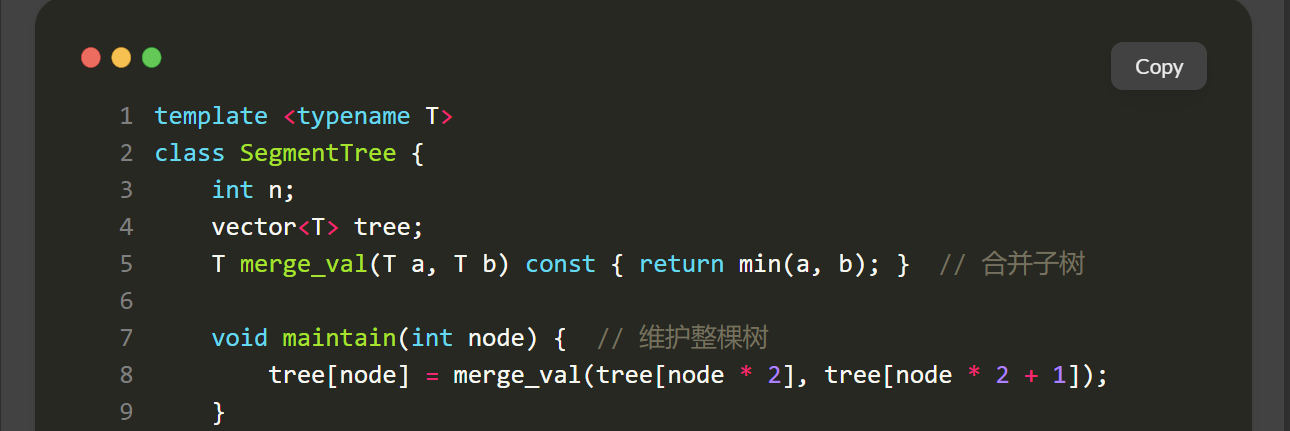
macOS 风格代码块
拟 macOS 顶栏也是在 assets/scss/custom.scss 里加的:
 1
 2
 3
 4
 5
 6
 7
 8
 9
10
11
12
13
| .article-content {
.highlight:before {
content: '';
display: block;
background: url(/code-header.svg);
height: 32px;
width: 100%;
background-size: 57px;
background-repeat: no-repeat;
margin-bottom: 5px;
background-position: -1px 2px;
}
}
|
这里用到的图标文件是 static/code-header.svg。Hugo 会把 static 下的文件原样复制到站点根目录,所以 CSS 里可以直接写 url(/code-header.svg)。
代码块复制按钮
复制按钮则不是 SCSS 完成的,而是在 assets/ts/main.ts 中给每个代码块动态追加按钮。这段加在 assets/ts/main.ts 中:
 1
 2
 3
 4
 5
 6
 7
 8
 9
10
11
12
13
14
15
16
17
18
19
20
21
22
23
| const highlights = document.querySelectorAll('.article-content div.highlight');
const copyText = `Copy`,
copiedText = `Copied!`;
highlights.forEach(highlight => {
const copyButton = document.createElement('button');
copyButton.innerHTML = copyText;
copyButton.classList.add('copyCodeButton');
highlight.appendChild(copyButton);
const codeBlock = highlight.querySelector('code[data-lang]');
if (!codeBlock) return;
copyButton.addEventListener('click', () => {
navigator.clipboard.writeText(codeBlock.textContent)
.then(() => {
copyButton.textContent = copiedText;
setTimeout(() => {
copyButton.textContent = copyText;
}, 1000);
});
});
});
|
它的思路很直接:页面加载后找到代码块,插入按钮,点击后把代码内容写入剪贴板。按钮的显示隐藏则由 .highlight:hover .copyCodeButton 控制。
长代码块折叠
后来写 Lab 和建站教程时,代码块经常会一下子占掉很长一段页面。完整代码当然需要保留,但如果默认全部展开,读者其实很难快速扫到后面的解释。
因此笔者把代码块增强逻辑整理到了 assets/ts/main.ts 的 setupCodeBlocks() 中:复制按钮和长代码块折叠都在这里处理。为了避免 PJAX 后重复插入按钮,每个代码块初始化后会打上 data-enhanced 标记:
 1
 2
 3
 4
 5
 6
 7
 8
 9
10
11
12
13
14
15
16
17
18
| const LONG_CODE_LINE_THRESHOLD = 80;
function setupCodeBlocks() {
const highlights = document.querySelectorAll('.article-content div.highlight') as NodeListOf<HTMLElement>;
highlights.forEach(highlight => {
if (highlight.dataset.enhanced === 'true') return;
highlight.dataset.enhanced = 'true';
const codeBlock = highlight.querySelector('code[data-lang]') as HTMLElement;
if (!codeBlock) return;
const lineCount = highlight.querySelectorAll('.lnt').length || (codeBlock.textContent || '').split('\n').length;
if (lineCount <= LONG_CODE_LINE_THRESHOLD) return;
highlight.classList.add('is-collapsible', 'is-collapsed');
});
}
|
这里优先通过 Chroma 生成的 .lnt 行号来统计行数。如果没有行号,就退回到按换行符计算。超过 80 行的代码块默认折叠,并在底部加一个按钮:
 1
 2
 3
 4
 5
 6
 7
 8
 9
10
| const expandButton = document.createElement('button');
expandButton.type = 'button';
expandButton.className = 'codeFoldButton';
expandButton.textContent = `展开完整代码(${lineCount} 行)`;
highlight.appendChild(expandButton);
expandButton.addEventListener('click', () => {
const collapsed = highlight.classList.toggle('is-collapsed');
expandButton.textContent = collapsed ? `展开完整代码(${lineCount} 行)` : '收起代码';
});
|
样式上则给折叠状态设置一个最大高度,并在底部加一层渐变遮罩。这段加在 assets/scss/custom.scss 中:
 1
 2
 3
 4
 5
 6
 7
 8
 9
10
11
12
13
14
15
16
| .article-content {
.highlight.is-collapsed {
max-height: 520px;
}
.highlight.is-collapsed::after {
content: '';
position: absolute;
right: 0;
bottom: 0;
left: 0;
height: 120px;
pointer-events: none;
background: linear-gradient(180deg, rgba(0, 0, 0, 0), var(--card-background) 72%);
}
}
|
这样短代码块仍然保持原样,长代码块则先露出开头和结构,读者需要时再展开。对 Lab 文章和长脚本教程会友好很多。
文章阅读进度条
阅读进度条也是在 assets/ts/main.ts 中处理。它不需要写进模板里,而是由脚本在文章页动态创建:
 1
 2
 3
 4
 5
 6
 7
 8
 9
10
11
12
13
14
15
16
17
| function setupReadingProgress() {
const existing = document.querySelector('.reading-progress') as HTMLElement;
const article = document.querySelector('.article-page .main-article') as HTMLElement;
const content = document.querySelector('.article-content') as HTMLElement;
if (!article || !content) {
existing?.remove();
window.removeEventListener('scroll', updateReadingProgress);
window.removeEventListener('resize', updateReadingProgress);
return;
}
const bar = existing || document.createElement('div');
bar.className = 'reading-progress';
bar.setAttribute('aria-hidden', 'true');
if (!existing) document.body.appendChild(bar);
}
|
注意这里要处理非文章页:如果从文章页通过 PJAX 切到首页或搜索页,就把进度条移除,并解绑滚动监听。否则顶部会残留一条已经没有意义的进度条。
真正计算进度时,参考的是 .article-content 的位置和高度:
 1
 2
 3
 4
 5
 6
 7
 8
 9
10
11
12
13
| function updateReadingProgress() {
const bar = document.querySelector('.reading-progress') as HTMLElement;
const content = document.querySelector('.article-content') as HTMLElement;
if (!bar || !content) return;
const rect = content.getBoundingClientRect();
const scrollTop = window.scrollY || document.documentElement.scrollTop;
const start = scrollTop + rect.top;
const total = Math.max(content.scrollHeight - window.innerHeight * 0.55, 1);
const current = Math.min(Math.max(scrollTop - start, 0), total);
bar.style.transform = `scaleX(${current / total})`;
}
|
样式则很轻,只是一条固定在顶部的细线:
 1
 2
 3
 4
 5
 6
 7
 8
 9
10
11
12
| .reading-progress {
position: fixed;
top: 0;
left: 0;
z-index: 2000;
width: 100%;
height: 3px;
transform: scaleX(0);
transform-origin: left center;
background: var(--accent-color);
pointer-events: none;
}
|
这个功能不改变文章结构,但读长文时会比较有方向感。尤其是 CS Lab、建站教程和算法长文,读者能直观看到自己大概读到哪里了。
记录博客运行时间
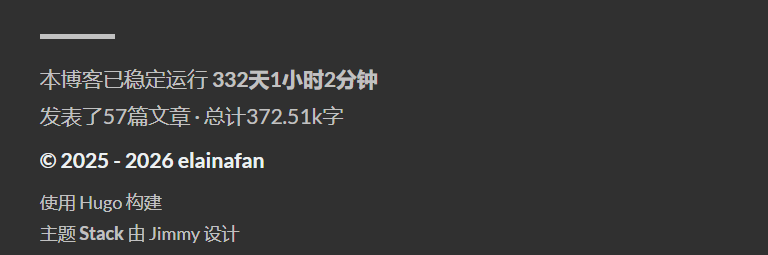
页脚覆盖文件是 layouts/partials/footer/footer.html。这里主要加了两类信息:博客运行时间,以及文章数量和总字数。
运行时间的 HTML 结构加在 layouts/partials/footer/footer.html 中:
1
2
3
4
| <section class="running-time">
本博客已稳定运行
<span id="runningdays" class="running-days"></span>
</section>
|
真正计算时间的脚本不在 footer 模板里,而是在 layouts/partials/footer/custom.html 中。脚本设置起始日期为 2025-6-23,然后用当前时间减去起始时间,算出天、小时和分钟。这段加在 layouts/partials/footer/custom.html 中:
 1
 2
 3
 4
 5
 6
 7
 8
 9
10
11
12
13
14
| function updateRunningDays() {
let s1 = '2025-6-23';
s1 = new Date(s1.replace(/-/g, "/"));
let s2 = new Date();
let timeDifference = s2.getTime() - s1.getTime();
let days = Math.floor(timeDifference / (1000 * 60 * 60 * 24));
let hours = Math.floor((timeDifference % (1000 * 60 * 60 * 24)) / (1000 * 60 * 60));
let minutes = Math.floor((timeDifference % (1000 * 60 * 60)) / (1000 * 60));
let result = days + "天" + hours + "小时" + minutes + "分钟";
const elem = document.getElementById('runningdays');
if (elem) elem.innerHTML = result;
}
|
记录文章数量和总字数
总字数统计则完全由 Hugo 模板完成,这段加在 layouts/partials/footer/footer.html 中:
1
2
3
4
5
6
| {{$scratch := newScratch}}
{{ range (where .Site.Pages "Kind" "page" )}}
{{$scratch.Add "total" .WordCount}}
{{ end }}
发表了{{ len (where .Site.RegularPages "Section" "post") }}篇文章 ·
总计{{ div ($scratch.Get "total") 1000.0 | lang.FormatNumber 2 }}k字
|
这里用 newScratch 临时累加所有页面的 .WordCount,再统计 post 分区下的文章数量。Hugo 模板语法看起来比较奇怪,但做这种静态统计非常方便。
对应样式在 assets/scss/partials/footer.scss 中,额外给 .totalcount 和 .running-time 做了颜色、字号和间距调整。
记录文章访问量
访问量显示改在 layouts/partials/article/components/details.html。文章日期和阅读时间后面,额外插入这段:
1
2
3
4
5
6
| <div id="viewCount">
{{ partial "helper/icon" "eye" }}
<time class="article-time--reading">
<span id="vercount_value_page_pv">loading... </span>次
</time>
</div>
|
这里用到了 assets/icons/eye.svg,统计脚本则在 layouts/partials/footer/custom.html 中引入:
1
| <script defer src="https://cn.vercount.one/js"></script>
|
因为首页和列表页也会复用文章卡片结构,所以脚本里还写了一个 showHideView,当当前页面不是文章页时,就把浏览量隐藏。
文章加密功能
文章加密改在 layouts/partials/article/components/content.html。如果 frontmatter 中设置 encrypt: true,就先显示一个加密入口卡片,并把正文放在隐藏的 #post-content 中。这段加在 layouts/partials/article/components/content.html 中:
 1
 2
 3
 4
 5
 6
 7
 8
 9
10
11
12
13
14
15
16
17
18
19
20
| {{ if .Params.encrypt }}
<div id="encrypt-box" class="encrypt-box" data-lock-state="idle">
<div class="encrypt-box__body">
<p class="encrypt-box__eyebrow">SECRET NOTE</p>
<h2>才、才不是谁都能看的笔记呢!</h2>
<p class="encrypt-box__hint">输入暗号的话……也不是不能让你看一下。</p>
<div class="encrypt-box__form">
<input type="password" id="pwd" aria-label="输入暗号">
<button type="button" onclick="unlockEncryptedPost()" aria-label="确认暗号">♡</button>
</div>
<p id="encrypt-message" class="encrypt-box__message" role="status"></p>
</div>
</div>
<div id="post-content" style="display:none;">
{{ .Content | replaceRE "(<table>(?:.|\n)+?</table>)" (printf "<div class=\"table-wrapper\">${1}</div>") | safeHTML }}
</div>
{{ else }}
{{ .Content | safeHTML }}
{{ end }}
|
对应的 unlockEncryptedPost 函数在 layouts/partials/footer/custom.html。早期版本是直接用明文密码比较,这样源码里能看到密码,不太优雅。现在改成通过 Web Crypto 的 PBKDF2 派生摘要,再和预先写好的摘要比较;匹配成功后隐藏输入框并显示正文,失败时只在卡片内提示“哼,暗号不对哦……再认真试一次啦!”,不再弹出浏览器原生弹窗。另外脚本常驻 footer,这样 PJAX 跳到加密文章时也能正常工作。
 1
 2
 3
 4
 5
 6
 7
 8
 9
10
11
12
13
14
15
16
17
18
19
20
21
22
23
24
25
26
27
28
29
30
31
32
33
34
35
36
37
38
39
40
41
42
43
| async function derivePostPassword(password) {
const encoder = new TextEncoder();
const key = await crypto.subtle.importKey(
"raw",
encoder.encode(password),
"PBKDF2",
false,
["deriveBits"]
);
const buffer = await crypto.subtle.deriveBits(
{
name: "PBKDF2",
salt: encoder.encode("站点自定义 salt"),
iterations: 180000,
hash: "SHA-256"
},
key,
256
);
return Array.from(new Uint8Array(buffer))
.map(byte => byte.toString(16).padStart(2, "0"))
.join("");
}
window.unlockEncryptedPost = async function () {
const pwd = document.getElementById("pwd").value;
const box = document.getElementById("encrypt-box");
const content = document.getElementById("post-content");
const digest = await derivePostPassword(pwd);
if (digest === "预先计算好的 PBKDF2 摘要") {
box.style.display = "none";
content.style.display = "block";
} else {
box.classList.add("encrypt-box--error");
}
};
document.addEventListener("keydown", e => {
if (e.key === "Enter" && document.getElementById("pwd")) {
window.unlockEncryptedPost();
}
});
|
解锁卡片、英梨梨贴纸背景和错误抖动动画放在 assets/scss/custom/_article-extras.scss,贴纸图片放在 static/images/eriri-lock.png。需要注意的是,这仍然更接近静态站里的阅读门禁,而不是构建产物级别的正文密文。这里已经通过 RSS 和搜索模板避免加密文章正文被索引,同时不再把明文密码直接写进脚本;如果之后希望连生成后的 HTML 中也不出现正文,就需要在 Hugo 构建前增加一层内容加密脚本,把正文预先转成密文再交给前端解开。
表格横向滚动
表格滚动也是在 layouts/partials/article/components/content.html 中处理的,这段加在同一个文件里:
1
| {{ .Content | replaceRE "(<table>(?:.|\n)+?</table>)" (printf "<div class=\"table-wrapper\">${1}</div>") | safeHTML }}
|
这段会把文章里的 <table> 自动包进 .table-wrapper,方便在窄屏幕上横向滚动。对于 Codeforces 日志、课程表格、评分记录这类内容来说,这个改动非常实用。

搜索隐藏页过滤
搜索页面的模板是 layouts/page/search.html,搜索数据由 layouts/page/search.json 生成。
layouts/page/search.json 里有一个很关键的过滤,这段加在 layouts/page/search.json 中:
1
2
3
| {{- $pages := where .Site.RegularPages "Type" "in" .Site.Params.mainSections -}}
{{- $notHidden := where .Site.RegularPages "Params.hidden" "!=" true -}}
{{- $filtered := ($pages | intersect $notHidden) -}}
|
也就是说,只有 post 主分区里的文章会进入搜索,而且 hidden: true 的页面会被过滤掉。这样像 1400.md、1600.md 这类长期记录的隐藏子页面,就不会在搜索结果里单独刷屏。
前端搜索逻辑在 assets/ts/search.tsx。它会读取搜索 JSON,把标题和正文转成纯文本,然后根据关键词生成带 <mark> 的预览片段。这个功能原本就是 Stack 主题的一部分,笔者这里主要是为了配合 PJAX,把初始化函数改成可被 Stack.init() 调用的形式。详细部分会放到播放器与 PJAX 那篇里讲。
外链新窗口打开
外链新窗口打开则在 layouts/_default/_markup/render-link.html 中完成,这段加在这个文件里:
1
2
3
| <a class="link" href="{{ .Destination | safeURL }}" {{ with .Title}} title="{{ . }}"
{{ end }}{{ if strings.HasPrefix .Destination "http" }} target="_blank" rel="noopener"
{{ end }}>{{ .Text | safeHTML }}</a>
|
核心是判断 .Destination 是否以 http 开头。如果是外链,就加上 target="_blank" 和 rel="noopener"。这样读文章时点外部资料,不会直接离开当前博客页面。
自定义图标
自定义图标放在 assets/icons 下,例如 assets/icons/bilibili.svg、assets/icons/photo.svg、assets/icons/eye.svg、assets/icons/left.svg、assets/icons/right.svg。Stack 主题本身通过 partial "helper/icon" 读取图标,因此只要放进这个目录,就能在菜单或模板里使用。
例如图库页 content/page/photo/index.md 中写了这段 frontmatter,这段写在 content/page/photo/index.md 中:
1
2
3
4
5
| menu:
main:
weight: -50
params:
icon: photo
|
Hugo 渲染菜单时就会去找 assets/icons/photo.svg。
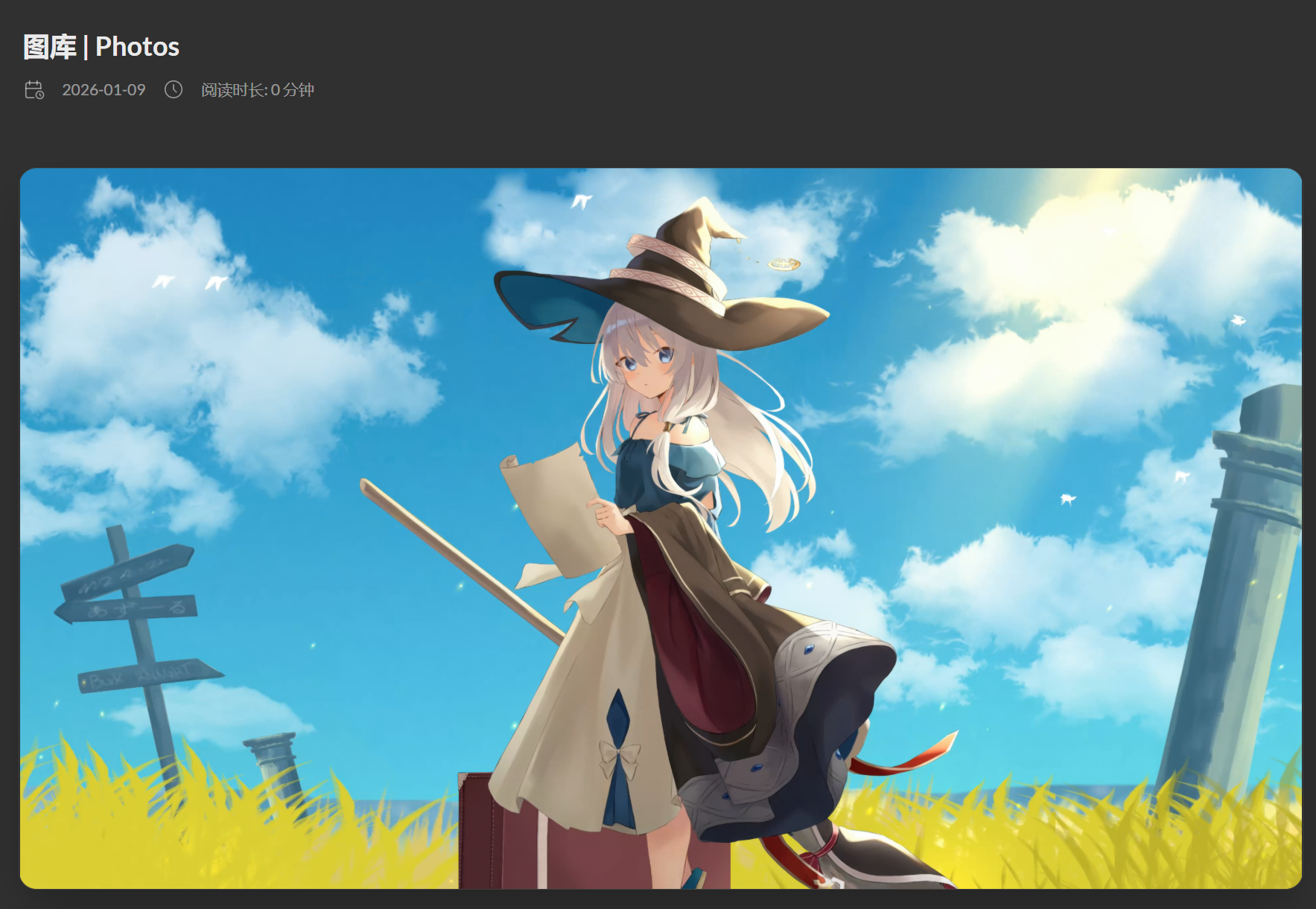
图库入口和瀑布流
图库页使用的是 layouts/photo/single.html。图片资源放在 assets/waifus,模板里通过这段收集图片,这段加在 layouts/photo/single.html 中:
1
| {{- $imgs := resources.Match "waifus/*.{jpg,jpeg,png,webp}" -}}
|
和最早的轮播写法不同,后来的版本没有再把图片写进 data-images 交给前端预加载,而是直接在模板里生成瀑布流。每张图用 Hugo 的 Fit 生成缩略图,a 标签仍然指向原图,这段加在 layouts/photo/single.html 中:
 1
 2
 3
 4
 5
 6
 7
 8
 9
10
11
12
13
14
| {{- range $i, $img := $imgs -}}
{{- $thumb := $img.Fit "640x900 q82" -}}
<figure class="gallery-image photo-tile">
<a href="{{ $img.RelPermalink }}" target="_blank" rel="noopener">
<img
src="{{ $thumb.RelPermalink }}"
data-thumb="{{ $thumb.RelPermalink }}"
width="{{ $img.Width }}"
height="{{ $img.Height }}"
loading="lazy"
alt="图库图片 {{ add $i 1 }}">
</a>
</figure>
{{- end -}}
|
这样页面首屏加载的是缩略图,点击时 PhotoSwipe 打开的是原图,既保留欣赏大图的体验,也不会让页面一开始就把所有原图压上来。为了让 PhotoSwipe 读取 a 标签里的原图地址,assets/ts/gallery.ts 中点击前刷新图片信息时也改成优先读取链接:
1
2
3
| const link = item.el.querySelector('a');
item.src = link?.href || img.src;
item.msrc = img.getAttribute('data-thumb') || img.src;
|
瀑布流样式直接写在 layouts/photo/single.html 里。桌面端三列,窄一点时两列,手机端一列;图片保持原比例,不强行裁切:
 1
 2
 3
 4
 5
 6
 7
 8
 9
10
11
12
13
14
15
16
17
| .photo-gallery-content .gallery.photo-masonry {
display: block;
column-count: 3;
column-gap: 16px;
}
@media (max-width: 900px) {
.photo-gallery-content .gallery.photo-masonry {
column-count: 2;
}
}
@media (max-width: 520px) {
.photo-gallery-content .gallery.photo-masonry {
column-count: 1;
}
}
|
图片导入也没有再手动一张张改文件名。笔者加了 scripts/import_photos.py,先从公开 SFW 图源拉候选图,再做尺寸、比例、格式、重复图过滤,最后统一转成 WebP 放入 assets/waifus。正式页面只读取本地目录,不在前端运行时请求 API,因此图库质量可以通过本地筛选控制,构建时也更稳定。
为了让图库不像普通列表那样很快见底,后面又在 layouts/photo/single.html 里加了一段前端循环逻辑。它不是重新请求图片,也不是一次性复制很多节点,而是把首屏已有的图片节点当成模板,快滚到底时再小批量补一段:
 1
 2
 3
 4
 5
 6
 7
 8
 9
10
11
12
13
14
15
16
17
18
19
20
21
22
| for (let i = originalFigures.length - 1; i > 0; i--) {
const j = Math.floor(Math.random() * (i + 1));
[originalFigures[i], originalFigures[j]] = [originalFigures[j], originalFigures[i]];
}
const batchSize = Math.min(24, total);
const threshold = Math.max(1400, window.innerHeight * 1.25);
let cursor = 17;
function appendLoopBatch() {
const fragment = document.createDocumentFragment();
for (let i = 0; i < batchSize; i++) {
const index = cursor % total;
const clone = originals[index].cloneNode(true);
clone.dataset.originalIndex = String(index);
fragment.appendChild(clone);
cursor += 17;
}
gallery.appendChild(fragment);
}
|
开头的 Fisher-Yates shuffle 会先把原始图片顺序打乱,因此每次打开图库页时,首屏看到的图片都不一样。后面的 17 和当前图库数量互质,所以补出来的顺序也会错开,不会变成“最后一张后面马上又接第一张”的硬拼接。性能上也要注意:克隆图点击放大时不重新扫描整条瀑布流,而是通过 data-original-index 映射回原始图片列表。这样滚动时只增加少量 DOM,PhotoSwipe 仍然只维护原始图库的数据,页面会轻很多。
这部分其实已经有点接近单独功能页了。它和追番页一样,都是通过“自定义 layout + 页面 frontmatter”实现的,只不过追番页的数据来自 Bangumi API 和本地缓存,图库页的数据来自本地 assets/waifus。
小结
这样整理下来,博客美化大致可以分成三层。
第一层是 assets/scss/custom.scss 里的纯样式补丁,比如卡片圆角、页面宽度、头像旋转、图片圆角、引用块颜色、代码块样式和 hover 动画。
第二层是 layouts 下的模板覆盖,比如自定义背景、页脚统计、访问量、文章加密、表格滚动、搜索过滤、外链新窗口和图库页面。
第三层是少量前端脚本增强,比如代码复制按钮、图库瀑布流等。
至于 APlayer、PJAX、顶部进度条、Giscus 重载、KaTeX 重渲染这些功能,表面上也是“美化”,但它们实际上都围绕“页面切换时不要刷新播放器”这个目标展开,牵一发而动全身。因此笔者会把它们单独整理成下一篇文章,不然混在这里就又会变成标题满天飞的小缝合怪了。